Barcodes
NCReport renders barcodes with the Barcode item. Barcode generation is based on the Zint barcode library, which is bundled with the NCReport source code (src/3rdparty/zintlib, Zint version 2.12.0).
Thanks to Zint, the item supports nearly one hundred symbologies, from classic linear barcodes such as EAN-13 and Code 128 to 2D symbols such as QR Code, Data Matrix, PDF417 and Aztec Code.
|
Barcode support is a build-time feature. It is enabled by the |
How Barcodes Are Rendered
When the barcode value or any barcode option changes, the item passes the data to Zint, which produces the barcode in SVG format. By default the SVG is generated in memory.
If the engine is built with the barcodetempfile extension, Zint writes the SVG into a temporary file instead (into the system temporary directory), which is then read back. This mode is intended for platforms where in-memory generation is not suitable, such as some ARM builds.
The generated SVG is then painted by one of the two available renderers:
- Native (SVG) renderer
-
The default. The SVG is rendered by Qt’s
QSvgRenderer. The barcode is scaled into the item rectangle while keeping its aspect ratio, and positioned according to the item alignment. - Fast mode renderer
-
An alternative renderer that parses the Zint SVG output and draws its elements directly with QPainter.
Barcodes are painted in the printer, PDF, SVG, image and preview outputs. If Zint reports an error (for example, invalid characters for the selected symbology), the Designer shows the error message inside the item rectangle; at run time the barcode is not drawn and the error message is written to the standard error output.
Adding a Barcode Item
In the Designer, select the Barcode tool from the toolbar or the Tools menu and click in the section where you want to place the barcode. A new barcode item is created with the sample value 503102187159 and the default symbology EAN (Zint ID 13), and the Barcode properties dialog opens.
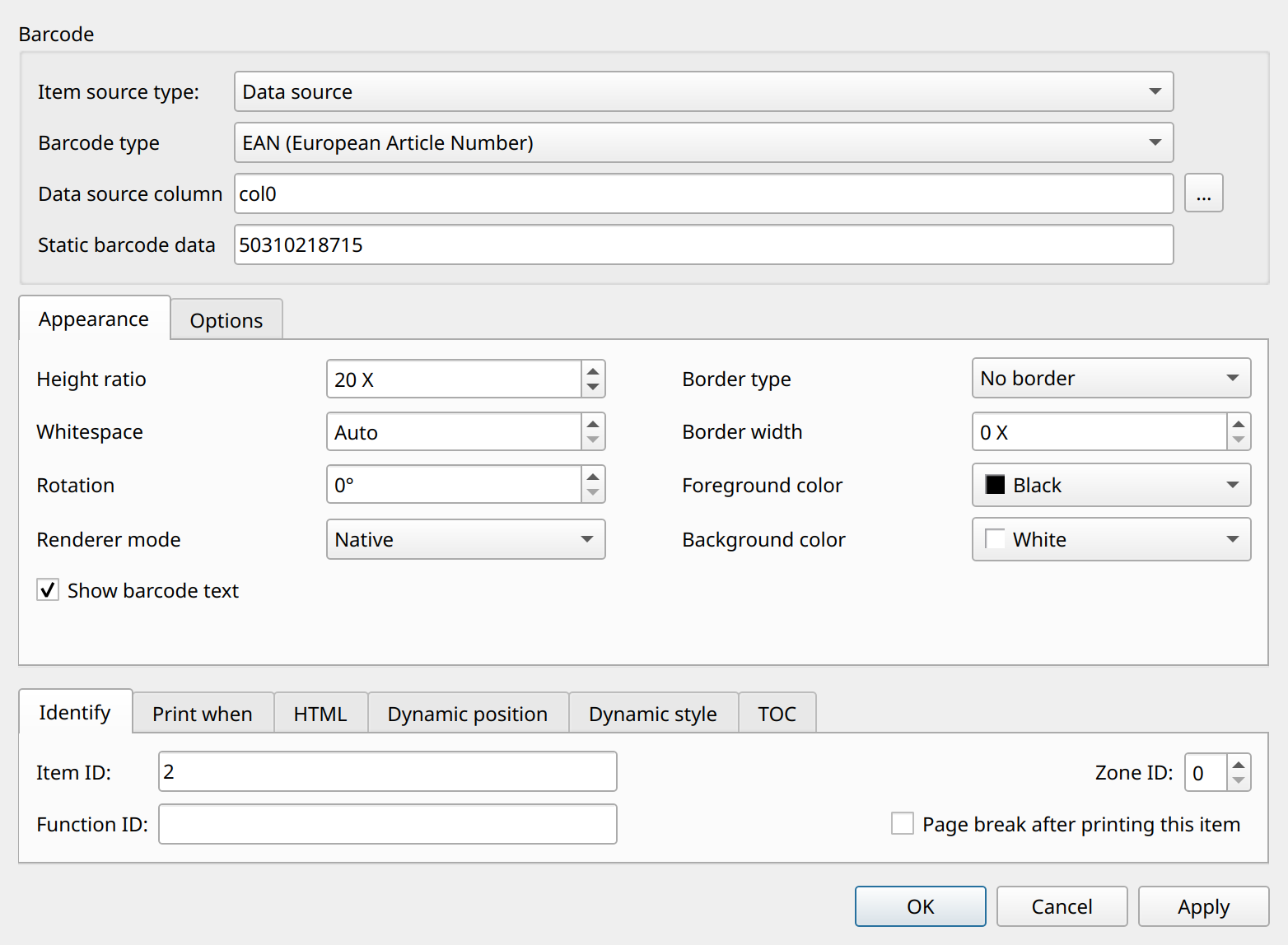
The dialog contains the following parts:
- Barcode
-
Item source type, barcode type (symbology), the data source column / parameter / expression field, and the static barcode data.
- Appearance tab
-
Height ratio, whitespace, rotation, Show barcode text, border type, border width, foreground color and background color.
- Options tab
-
Symbology-specific options (error correction level, version, number of columns, encoding mode, structured primary message, Option1-3) and the renderer mode.
- Advanced Options
-
The common item options: Print When expression, HTML options, item ID, function ID and zone ID.
Setting the Symbology
The symbology is selected in the Barcode type combo box, which lists all symbologies supported by the bundled Zint library, sorted by name.
In the report definition, the symbology is stored in the barcodeType attribute as the numeric Zint symbology ID:
<barcode ... barcodeType="58" ...>For backward compatibility, the values EAN, EAN13 and EANX are also accepted and mapped to Zint’s EAN symbology (ID 13).
The following table lists commonly used symbologies with their Zint IDs:
| Zint ID | Symbology (name in the Designer) | Type |
|---|---|---|
3 |
2 of 5 Interleaved |
Linear |
8 |
Code 39 |
Linear |
13 |
EAN (European Article Number) — EAN-8, EAN-13 and add-ons |
Linear |
14 |
EAN + Check Digit |
Linear |
16 |
GS1-128 |
Linear |
18 |
Codabar |
Linear |
20 |
Code 128 |
Linear |
25 |
Code 93 |
Linear |
29 |
GS1 DataBar Omnidirectional |
Linear |
34 |
UPC-A |
Linear |
37 |
UPC-E |
Linear |
40 |
USPS (U.S. Postal Service) POSTNET |
Postal |
52 |
Pharmazentralnummer (PZN) |
Linear |
55 |
PDF417 |
Stacked |
57 |
MaxiCode |
2D |
58 |
QR Code |
2D |
60 |
Code 128 (Suppress subset C) |
Linear |
69 |
ISBN |
Linear |
70 |
Royal Mail 4-State Customer Code |
Postal |
71 |
Data Matrix (ECC200) |
2D |
72 |
EAN-14 |
Linear |
75 |
NVE-18 (SSCC-18) |
Linear |
84 |
MicroPDF417 |
Stacked |
85 |
USPS Intelligent Mail (OneCode) |
Postal |
89 |
ITF-14 |
Linear |
90 |
Dutch Post KIX Code |
Postal |
92 |
Aztec Code |
2D |
97 |
Micro QR Code |
2D |
115 |
DotCode |
2D |
116 |
Han Xin (Chinese Sensible) Code |
2D |
130 |
EAN Composite |
Composite |
145 |
Rectangular Micro QR Code (rMQR) |
2D |
|
The complete list of symbology IDs can be found in the bundled Zint header file |
Barcode Value: Static or Dynamic
The data to encode can be static or dynamic. The Item source type combo box offers the following source types for barcodes:
| Source type | resource value |
Description |
|---|---|---|
Static |
(none) |
The value typed into Static barcode data. It is stored in the |
Data source |
|
The value of a data source column. The element text holds the column expression, for example |
Parameter |
|
The value of a report parameter. The element text holds the parameter ID. |
Template |
|
A template text with embedded data source, parameter and variable tokens (for example |
Script expression |
|
A script expression; its result is the barcode value. |
For dynamic sources, the barcode is regenerated only when the value differs from the previous one.
|
The |
Barcode Options
The following table summarizes the options of the barcode item, the corresponding XML attributes and their defaults. Attributes that hold the default value are not written to the report file.
| Option (Designer) | XML attribute | Default | Description |
|---|---|---|---|
Barcode type |
|
|
Zint symbology ID, see above. |
Height ratio |
|
|
The symbol height passed to Zint. A value of 0 is treated as 50. Because the barcode is scaled into the item rectangle with a fixed aspect ratio, this value controls the height-to-width proportion of linear barcodes. ( |
Whitespace |
|
|
Width of the horizontal quiet zone (Zint |
Rotation |
|
|
Rotation angle in degrees. Zint accepts 0, 90, 180 and 270; other angles result in an "Invalid rotation angle" error. |
Show barcode text |
|
|
Shows or hides the human-readable text below the barcode. |
Border type |
|
No border |
No border, Bind (boundary bars above and below) or Box (box around the symbol). |
Border width |
|
|
Width of the border or boundary bars. Written only when a border type is set. |
Foreground color |
|
black |
Color of the bars/modules, as a color name such as |
Background color |
|
white |
Background color of the symbol. |
Error correction level (PDF417 and QR Code) |
|
|
If greater than 0, it is passed to Zint as |
Structured primary message (Maxicode and Composite) |
|
(empty) |
The primary message used by MaxiCode structured modes and by composite symbologies. |
Option1, Option2, Option3 |
|
|
Passed directly to Zint’s |
Renderer mode |
|
|
|
(XML only) |
|
horizontally centered |
Position of the scaled barcode inside the item rectangle (numeric |
|
The Version (QR Code), Number of columns (PDF417) and Encoding mode fields of the Options tab are saved to the report ( |
For the exact meaning of option_1, option_2 and option_3 for a given symbology, consult the Zint documentation.
XML Examples
A static EAN-13 barcode, rotated by 270 degrees:
<barcode id="9BUNB" zValue="0" posX="97.790" posY="11.430" width="33.020" height="34.290"
         barcodeType="13" code="503102187159" rotation="270"></barcode>
A Code 128 barcode whose value comes from a data source column:
<barcode id="1" zValue="1" posX="45.720" posY="0.000" width="124.460" height="24.130"
         resource="datasource" barcodeType="60" code="xxxxxx"
         heightRatio="50">col2</barcode>
A QR Code with error correction level 2, version 4 (set through Option2), without human-readable text, drawn in dark blue:
<barcode id="QR1" zValue="2" posX="10.000" posY="0.000" width="25.000" height="25.000"
         barcodeType="58" code="https://ncreportsoftware.com"
         secure="2" opt2="4" showText="false" foreColor="#000080"
renderer="0"></barcode>|
Barcode demo reports are available in the |