Zones
This feature is available since version 2.2.0. Zones are virtual bands within a report section. Every report item has a Zone ID property. Items with the same zone ID form a horizontal zone, a virtual band inside the section, much like a group. When the section’s Automatic height option is enabled, the report engine renders the zones one after another, in the order of their zone IDs. If a zone is empty (for example, because the printWhen expression of every item in the zone returns false), the zone is not printed and the section shrinks accordingly. This makes it easy to design sections whose parts appear only under certain conditions, without leaving empty gaps in the output.
|
Zones are evaluated only in sections with the Automatic height option turned on. In fixed-height sections, items are printed at their designed positions. |
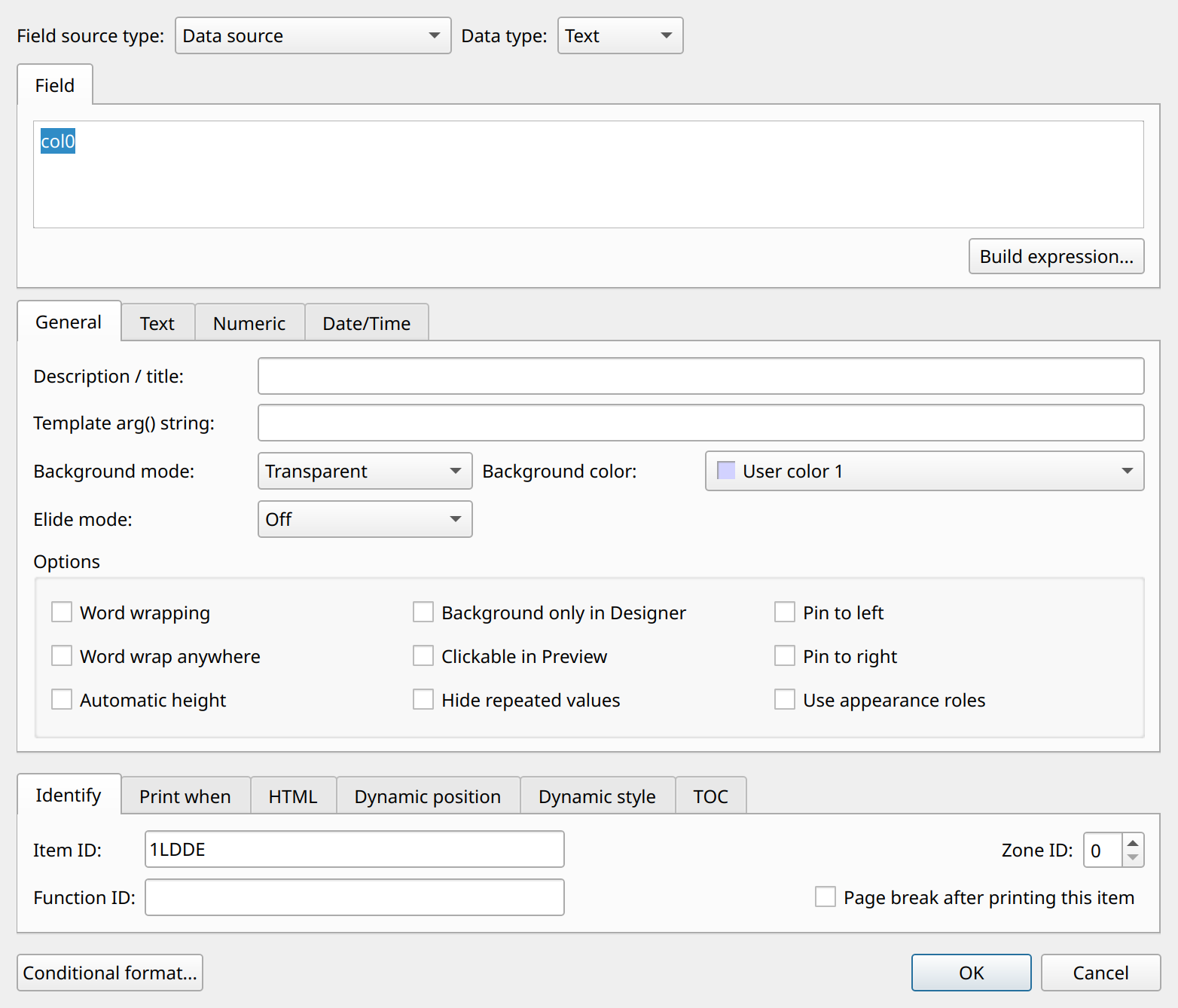
To set the zone ID of a report item, use the Identify tab of the item’s property dialog. To assign the same zone ID to several items at once, select the items and choose .

| Zones are not visible in design mode. The zone regions are determined only by the zone IDs of the report items. |
Zone settings
Two report-level options influence how zones are rendered. They can be set in the Designer under , in the Zone settings panel of the Sections tab:
- Zone spacing
-
Vertical spacing, in millimeters, added between the rendered zones. The default is 0. (Saved as
zoneSpacingin the report definition.) - Page break is allowed between zones
-
If enabled, a section may break to the next page between its zones, so a section with many zones does not have to fit on one page as a whole. If disabled (the default), the section is printed only if all of its visible zones fit in the remaining space; otherwise, the whole section moves to the next page. (Saved as
zoneBreakin the report definition.)