Designer Reference
The Getting Started with NCReport Designer chapter lists the menus, toolbars and keyboard shortcuts of the Designer. This chapter goes further: it describes how the editing tools work in detail, explains the preferences and where they are stored, and covers the less obvious features such as opening and saving reports in a database, the test data editor, the user interface languages and the command line arguments of the Designer.
Editing Tools
Selecting items
When the Selection tool (the arrow in the Tools toolbar) is active, you can select report items in the sections:
-
Click an item to select it. Clicking an item or an empty area of a section clears the selection in all other sections.
-
Drag a rectangle over an empty area of a section to select every item inside the rectangle (rubber band selection).
-
Hold down Ctrl and click items to add them to, or remove them from, the selection. With Ctrl held down, the selection in the other sections is kept, so you can select items in several sections at the same time.
The Designer remembers the order in which the items were selected. The first selected item is the reference item of the alignment and sizing operations (see Aligning and sizing items), and it is the item shown in the Geometry editor.
After you place a new item with one of the insert tools, the Designer automatically switches back to the Selection tool.
Mouse and keyboard actions
The following actions are available on the design area:
| Action | Result |
|---|---|
Double-click an item |
Opens the property dialog of the item. |
Double-click an empty area of a section |
Opens the section properties dialog. |
Enter or Return |
Opens the property dialog of the selected item, if exactly one item is selected. |
Del |
Deletes the selected items. |
Arrow keys |
Move the selected items. If Snap to grid is on, an item moves by one grid step, otherwise by one pixel. |
Ctrl + arrow keys |
Move the selected items by five steps (five grid steps or five pixels). |
Shift + arrow keys |
Resize the selected items: Up and Down change the height, Left and Right change the width. |
Ctrl+Shift + arrow keys |
Resize the selected items by five steps. |
Shift or Ctrl while drawing a line |
Constrains the new line to horizontal or vertical. |
Drag an end point of a selected line |
Moves that end point. With Ctrl held down, the whole line is moved instead. |
Drag items from the Data Source Manager |
Creates field items in the section. When several entries are dropped at once, the new fields are placed below each other; with Alt held down, they are placed side by side. |
The mouse wheel does not zoom the design area; use the zoom actions instead (see Zooming).
Context menus
Right-clicking an item opens its context menu with the following entries: Item properties…, Copy, Cut, Delete item, Lock item (or Unlock item for a locked item), Bring to front, Move to back, Section properties…, and depending on the section type Detail and groups… (detail sections) or Group settings… (group headers and footers).
Right-clicking an empty area of a section opens the section context menu: Section properties…, Detail and groups… or Group settings…, Paste, and the quick insert entries Insert Field, Insert Label, Insert Text and Insert Barcode. The quick insert entries create the item at the clicked position (snapped to the grid) and immediately open its property dialog.
Copy, cut and paste
(Ctrl+C) copies the selected items of the current section to an internal clipboard of the Designer as an XML fragment. (Ctrl+X) does the same and then deletes the items. (Ctrl+V) inserts the copied items into the current section:
-
The internal clipboard belongs to the Designer main window, so items can be copied from one report window and pasted into another one. It is not the system clipboard; to copy the whole report definition to the system clipboard, use (see XML Source of the Report).
-
The pasted items keep their original position, shifted by one grid step to the right and down, so they do not cover the originals exactly.
-
The pasted items get new item IDs, they are placed above the existing items of the section, and they become selected.
-
Copy and cut work on the selected items of the current (focused) section only.
Undo and redo
(Ctrl+Z) and (Ctrl+Y) step backward and forward in the editing history. Every report window has its own history; the Undo and Redo actions always work on the active window.
The following operations are recorded in the history: inserting items (also by paste and drag and drop), deleting items, moving items, resizing items, moving the end points of lines, and the alignment and same width/height operations of the Align menu. Changes made in property dialogs, locking and unlocking, setting zone IDs and the z-order operations are not recorded.
Locking items
(Ctrl+L) locks the selected items in all sections, (Ctrl+Shift+L) unlocks them. A single item can also be locked or unlocked from its context menu. A locked item is still selectable, and its selection handles are drawn in red instead of green. A locked item cannot be moved (neither with the mouse nor with the arrow keys), cannot be resized with the mouse, and is not deleted by Delete, Cut or the Del key. Its properties can still be edited in the property dialog.
|
The lock state is a design-time protection only. It is not saved in the report definition, so all items are unlocked again when the report is reopened. |
Z-order
Items in a section can overlap. The zValue attribute of each item determines the stacking order: items with a higher value are drawn above items with a lower value.
-
gives every selected item a z-value that is higher than that of any other item in the section.
-
gives every selected item a negative z-value, which puts it below the other items.
Both actions are also available in the item context menu (Bring to front, Move to back). The actions skip line items. The program also contains Move forwards and Move backwards actions, but they have no effect in the current version and they are not added to any menu or toolbar.
Aligning and sizing items
The Align menu and toolbar actions align or resize the selected items relative to the reference item, which is the first selected item. The reference item itself does not move. Line items are ignored by these operations, both as reference and as aligned item.
| Action | Result |
|---|---|
Align left |
The left edges of the items are aligned to the left edge of the reference item. |
Align right |
The right edges are aligned to the right edge of the reference item. |
Align top |
The top edges are aligned to the top edge of the reference item. |
Align bottom |
The bottom edges are aligned to the bottom edge of the reference item. |
Center vertically |
The items are moved horizontally so that their horizontal centers are aligned with the center of the reference item (they are centered on a common vertical axis). |
Center horizontally |
The items are moved vertically so that their vertical centers are aligned with the center of the reference item (they are centered on a common horizontal axis). |
Set widths the same |
Every item gets the width of the reference item; the heights are not changed. |
Set heights the same |
Every item gets the height of the reference item; the widths are not changed. |
The operations apply to the selected items of all sections and can be undone in one step.
Grid and Snap to Grid
The design area can display a grid of dots, and the items can be aligned to this grid automatically:
-
shows or hides the grid dots.
-
turns snapping on or off. When snapping is on, the position of the items is rounded to the nearest grid point when they are inserted or moved, the size is rounded when they are resized with the mouse, and the arrow keys move and resize the items by one grid step.
Both settings apply to all open report windows. The grid size is set in the Preferences dialog (), on the Report editor tab, in the Default grid group:
- Visible
-
The default state of Show grid. The default is off.
- Snap to grid
-
The default state of Snap to grid. The default is on.
- Grid X, Grid Y
-
The horizontal and vertical distance between grid points in screen pixels of the design area. The default is 6 for both.
- Reset grid
-
Restores the defaults: grid hidden, snapping on, 6 x 6 grid.
|
Toggling Show grid or Snap to grid from the View menu affects the current session. These two settings, together with the grid size, are saved only when you close the Preferences dialog with OK. |
|
Do not set the grid size to 0. The grid drawing and snapping calculations divide the section into grid steps, and a zero step size is not handled. |
Zooming
Zooming magnifies the sections of the active report window; the rulers follow the zoom level.
| Action | Shortcut | Result |
|---|---|---|
Ctrl++ |
Increases the magnification by one step (30%). |
|
Ctrl+- |
Decreases the magnification by one step. It cannot go below 100%. |
|
Ctrl+0 |
Resets the magnification to 100%. |
The magnification ranges from 100% to 400% in ten steps. Each report window has its own zoom level. Newly created and newly opened reports are displayed at 100%. Zooming does not change the report definition and does not mark the report as modified.
XML Source of the Report
puts the complete XML report definition of the active report on the system clipboard. The XML is generated from the current state of the report in the Designer, including the unsaved changes, so you do not need to save the file first. This is handy for pasting the definition into a text editor, a support request, or your application source code.
The Designer also contains a Show source action (status tip: "Show XML source code"), but in the current version it is not added to any menu and its implementation is empty, so it is not available. To see the source, copy it to the clipboard or open the saved .ncr file in a text editor.
Opening and Saving Reports in a Database
Report definitions can be stored in a column of an SQL database table instead of a file. The Designer can open a report definition from such a table and save it back.
Opening a report from a database
Select . The Open report from database dialog appears:
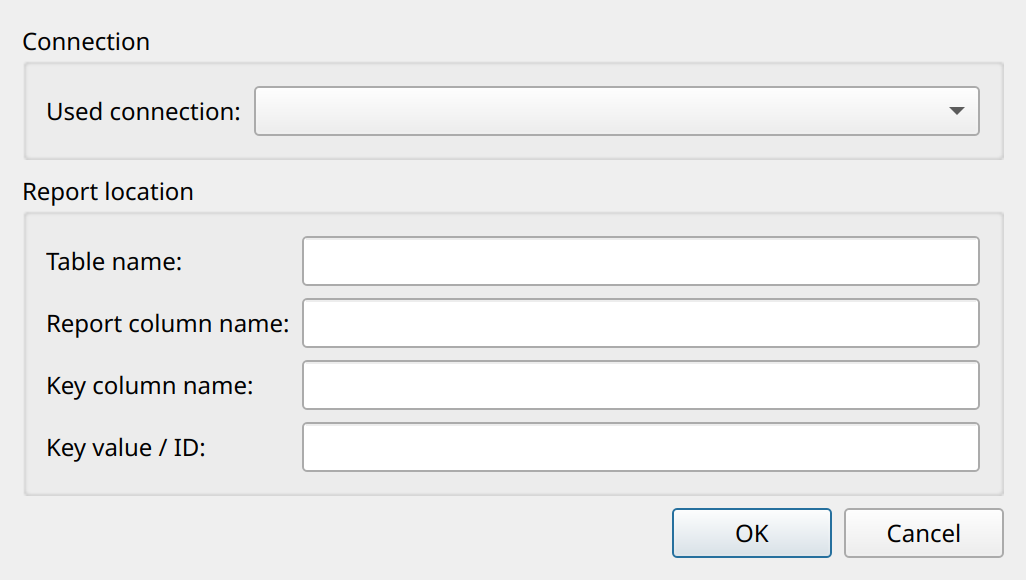
- Used connection
-
One of the database connections defined in the Database connection manager (see the database connection chapter). The Designer connects to it when you click OK. If no connection is selected, the default database connection of the application is used.
- Table name
-
The table that stores the report definitions.
- Report column name
-
The column that contains the XML report definition. The column must be able to store text of the size of a report definition.
- Key column name
-
The column that identifies the report.
- Key value / ID
-
The key of the report to open.
From these values the report engine (NCReportSource) builds the following query:
SELECT <report column> FROM <table> WHERE <key column>='<key value>'The key value is always written as a quoted string literal. The XML text is read from the first column of the first record of the result. The opened report window is titled DB:<key value>.
The values you enter are remembered (settings mDBConnectionID, mDBTable, mDBColumn, mDBKeyColumn and mDBKeyValue) and offered again the next time the dialog is opened.
Saving a report to the database
A report opened from a database is saved back to the same record with (Ctrl+S). The engine executes the statement
UPDATE <table> SET <report column>=? WHERE <key column>='<key value>'with the XML report definition bound to the parameter. Because only an UPDATE is executed, the record must already exist: the Designer cannot insert a new report record into the table. To store a new report, insert a record with its key first (for example with a placeholder definition), then open it from the database in the Designer.
A minimal table that fits these requirements could look like this:
CREATE TABLE reports (
    id        VARCHAR(32) PRIMARY KEY,   -- key column
    reportdef TEXT                       -- report column (XML)
);
The table and column names are free; you enter them in the dialog.
|
Database mode for applications that embed the Designer
When the Designer main window (NCRDMainWindow) is used in your own application, the default values of the Open from database dialog can be preset with setDefaultConnectionID(), setDefaultDBTable(), setDefaultDBColumn(), setDefaultDBKeyColumn() and setDefaultDBKeyValue(). The Designer’s main.cpp contains an example of this (compiled when NCRD_DATABASE_MODE_DEMO is defined).
In your application, a report stored in the database is run by setting the database source on the report source object (NCReportSource::Database source type with the connection ID, table name, column name, key column name and key value).
Layout Direction
The Designer base window contains a Switch layout direction function. It toggles the layout direction of the whole Designer application between left-to-right and right-to-left (QApplication::setLayoutDirection()). It mirrors the user interface only (menus, toolbars, dock windows and dialogs); it does not change the report definition or the way reports are rendered.
In the current version the Switch layout direction menu item is disabled in the source code (commented out of the View menu), so the function is not available from the user interface.
|
The Designer is a standard Qt application, so the standard Qt command line option |
The Preferences Dialog
opens the Preferences dialog. The settings take effect when you click OK, and they are saved at the same time.
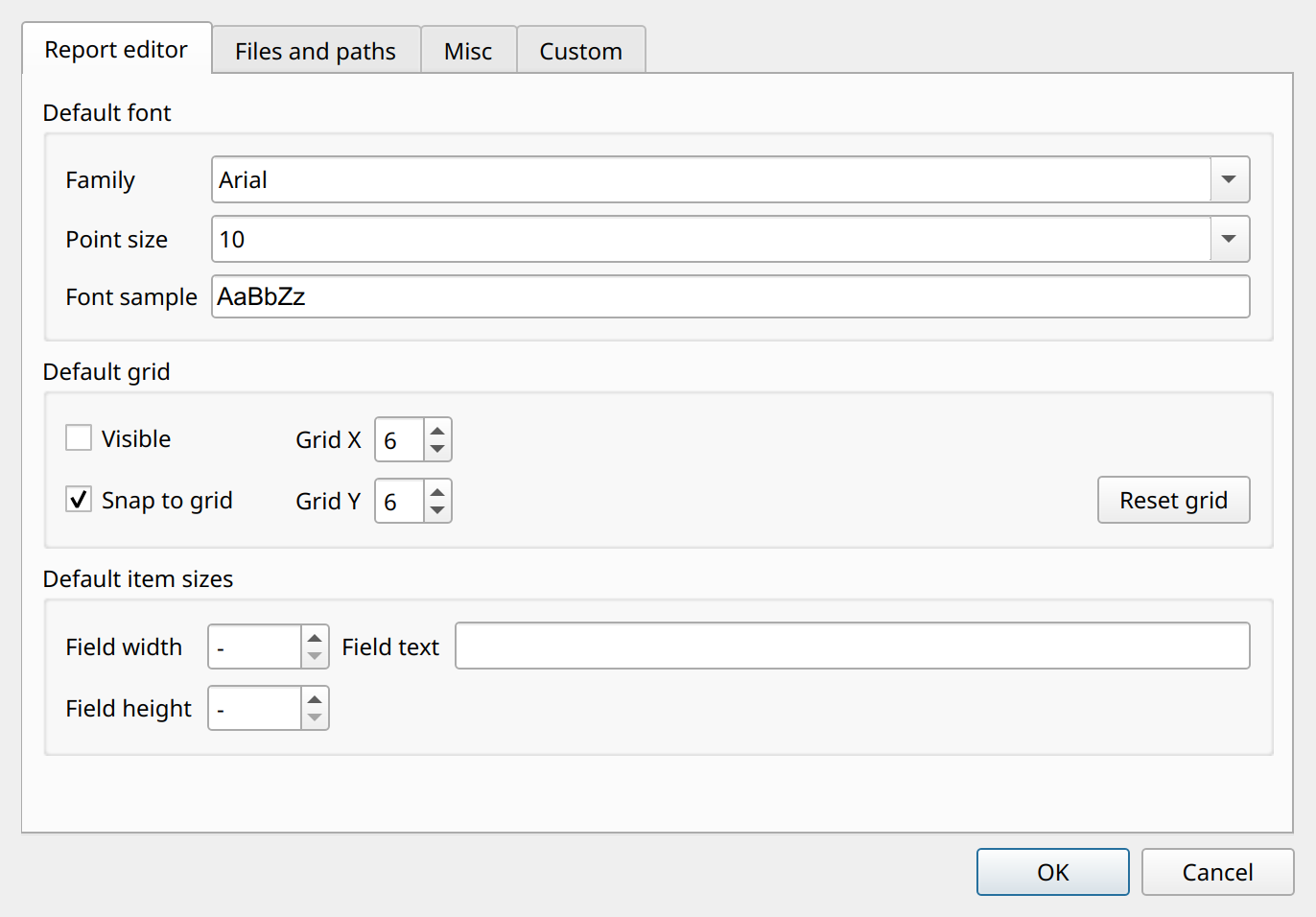
Report editor tab
- Default font: Family, Point size
-
The default font of new reports. When you create a new report, this font becomes its default font (the
fontnameandfontsizereport options), which can be changed later in the report and page settings. The default is Arial 10. The Font sample field shows a preview. - Default grid
-
Grid visibility, snapping and grid size, see Grid and Snap to Grid.
- Default item sizes: Field width, Field height
-
The size, in screen pixels, of new field items created with the Field tool or the Insert Field context menu entry. The value
-(0) means the built-in default size. The maximum is 500. - Default item sizes: Field text
-
The initial text (column reference) of new field items. If empty, new fields contain the text "Field".
Files and paths tab
- Report directory
-
The initial directory of the Open and Save As file dialogs, used until you open or save a file in another directory during the session.
- Output directory
-
The initial directory of the file dialogs that select the output file when running a report to a file (PDF, SVG, image, HTML, text, Excel), until you choose another output directory during the session.
- Template directory
-
Passed to the report definitions as the template directory. It is used when looking up template files, for example the HighCharts chart templates.
- Zint directory
-
The directory of the Zint barcode program. The value is applied when the Designer starts. The current rendering engine does not use it, because barcodes are rendered by the Zint library linked to NCReport.
- Output file counter
-
The Designer proposes output file names in the form
report_result_NNNN.<extension>, whereNNNNis this counter (padded to four digits). The counter is incremented with every proposed file name. - HTML Output
-
The strategy of the HTML output: Sections build from one table or Sections build from multiple tables, and an optional CSS file. These are passed to the HTML output when a report is run to an HTML file.
Misc tab
- Open report windows maximized
-
New and opened report windows are displayed maximized in the MDI area.
- Encode stored database connection passwords
-
The passwords of the database connections are stored Base64-encoded in the Designer settings instead of plain text.
- Supports custom XML attributes
-
When a report definition is opened, the Designer remembers the XML attributes of items and sections that it does not recognize (for example attributes added by your own tools). If this option is on, these attributes are written back when the report is saved; otherwise they are dropped.
- Printer resolution
-
High resolution (default) or Screen resolution. With Screen resolution the reports run from the Designer use the screen resolution print quality.
- Default printer name, Print without printer dialog
-
If Print without printer dialog is checked, the printer output prints directly to the printer named in Default printer name without showing the print dialog.
- Printer DPI
-
The print resolution in DPI used for the reports run from the Designer; it is also used by the new preview. Auto (0) keeps the default resolution. The maximum is 1200.
|
Base64 encoding is not encryption. Anyone who can read the settings can decode the passwords. Protect the settings file or registry key if the stored passwords are sensitive. |
Custom tab
- Custom settings
-
Free text in
name=valuelines. The Designer itself does not use these values; they are intended for applications that embed or extend the Designer. Such code can read a value withNCRDMainWindow::customSetting(name).
Where the settings are stored
The Designer stores its preferences and state with QSettings, using the organization name GrassBits, the organization domain ncreportsoftware.com and the application name NCReportDesigner. The physical location follows the usual Qt conventions of the platform: the registry key HKEY_CURRENT_USER\Software\GrassBits\NCReportDesigner on Windows, a GrassBits/NCReportDesigner.conf file in the user’s configuration directory (usually ~/.config) on Linux, and a property list file in ~/Library/Preferences on macOS. The organization and application names can be changed with command line arguments (see Command Line Arguments).
The most important keys are:
| Key | Content |
|---|---|
|
Directories of the Files and paths tab. |
|
Default font of new reports. |
|
Grid settings. |
|
Default item sizes. |
|
Output file counter. |
|
HTML output settings. |
|
Open report windows maximized, Encode stored database connection passwords, Supports custom XML attributes. |
|
Printer settings. |
|
Text of the Custom tab. |
|
The database connections of the connection manager. |
|
Test parameter values entered in the Designer. |
|
The recent files (at most 10). |
|
Last values of the Open report from database dialog. |
|
Main window geometry and toolbar/dock layout. |
The Test Data Editor
The test data editor (, Ctrl+T) provides data for the reports run from the Designer, so that reports using string lists, item models or string parameters can be tested without your application. The basic usage is shown in the Getting Started chapter; this section describes the editor in detail.
Test data items
A test data file contains any number of test data items. The list on the left side of the editor shows their IDs; the right side shows the settings and the content of the selected item:
- ID (name)
-
The ID under which the data is passed to the report. It must match the ID that the data source of the report refers to (for example the string list ID or the model ID).
- Datasource type
-
String list (QStringList), Item model (QStandardItemModel) or String parameter (QString).
- Column separator
-
The column separator of the content. Only Tab is available.
- Enabled / Add to report
-
Only enabled items are passed to the report.
The table below the settings holds the content. Each table row is one record (one line of the string list, one row of the item model, or one line of the string parameter); for string lists and item models the table columns are the columns of the data.
The editor menus and toolbars provide the following operations: New, Open (Ctrl+O), Save (Ctrl+S), Save as… and Close for the file, Add new data table and Remove data table for the test data items, Add row (Ctrl+R), Insert row (Ctrl+Shift+R), Remove row (Ctrl+Del), Add column (Ctrl+C), Insert column and Remove column (Ctrl+Shift+Del) for the content table, and Load content from file…, which appends the lines of a tab-separated text file (*.txt) to the table.
How the test data is passed to the reports
Every time a report is run from the Designer, the Designer reads the file defaulttestdata.xml and adds every enabled item to the report:
-
A string list item is added with
addStringList(); every non-empty line becomes a list element. -
An item model item is converted to a
QStandardItemModel(the tab-separated values become the columns) and added withaddItemModel(). -
A string parameter item is added as a report parameter with the given ID; its value is the content text.
The file name is relative, so defaulttestdata.xml is looked up in the current working directory of the Designer process. The editor opens this file automatically when it starts. Test data saved under any other name is not used when running reports, so keep the data you want to test with in defaulttestdata.xml (you can open other test data files in the editor and save their content into it).
|
In the current version, Save as… only selects the new file name; it does not write the file. Choose Save afterwards to write the data. |
The test data file is a simple XML document. The root element NCReportTestData (version 1.0) contains one data element per item, with the id, type (list, model or spar) and enabled attributes; the content is the element text with tab-separated columns:
<?xml version="1.0" encoding="UTF-8"?>
<NCReportTestData version="1.0">
    <data id="prod" type="list" enabled="true">A	Magnetometer	D54/78	yes	0.778	15.6
B	Oil pump	CT-784	yes	1.510	17
</data>
</NCReportTestData>
The testdata directory of the NCReport distribution contains a sample defaulttestdata.xml, and the reports directory contains demo reports that use test data (testdata_stringlist_demo.xml, testdata_itemmodel_demo.xml, testdata_stringparameter_demo.xml and testdata_stringparameter_group_demo.xml).
User Interface Languages
The user interface texts of the Designer are translatable. The translations are in the i18n directory of the NCReport source: the ncreport_<language>.ts source files and the compiled ncreport_<language>.qm files. The following .qm files are available:
| File | Language |
|---|---|
|
Czech |
|
German |
|
English |
|
Spanish |
|
French |
|
Hungarian |
|
Polish |
|
Russian |
|
Chinese (Simplified) |
The TRANSLATIONS variable of the project file src/translations.pri lists the German, Hungarian, Russian, Chinese, French, Spanish, Czech and Polish .ts files; these are the files updated by lupdate and compiled by lrelease. Some translations are incomplete; the untranslated texts are displayed in English.
The Designer selects its language at startup:
-
The language code is taken from the system locale (
QLocale::system().name(), for examplede_DE), unless the--tr=<code>command line argument is given (see Command Line Arguments). -
The Designer loads the translation file
ncreport_<code>.qm. If the exact file does not exist, Qt also tries the shorter variants of the name, so forde_DEthe filencreport_de.qmis used. -
The Qt translation of the standard Qt dialogs (
qtbase_<code>.qm) is loaded as well.
With Qt 5.3 and later, both files are loaded from the translations directory of the Qt installation (QLibraryInfo::TranslationsPath). With older Qt versions, ncreport_<code>.qm is loaded from the i18n directory relative to the working directory. If no translation file is found, the Designer starts in English. There is no language setting in the Preferences dialog.
|
The user interface language is independent of the language of a multilingual report. The submenu switches the current language of the report content, as described in the Internationalization chapter. |
Command Line Arguments
The Designer accepts the following command line arguments:
| Argument | Meaning |
|---|---|
|
The report file to open at startup. |
|
The language code of the user interface translation, for example |
|
The application name used for the settings (default: |
|
The organization name used for the settings (default: |
|
Prints the opened report to the printer right after startup. |
With --appname and --orgname you can keep several independent sets of Designer settings, for example separate connection lists and preferences for different projects:
NCReportDesigner invoice.ncr --tr=de --appname=NCReportDesigner-ProjectA|
The report file must be the first argument. The Designer takes the first command line argument as the file name whenever any argument without a leading |