Script Editor
The script editor lets you store predefined custom scripts within the report. Storing scripts in the report avoids duplicating script code assigned to report items or used anywhere else in the report. For example, it can be used efficiently for print-when expressions.
To reference a script anywhere in the report, use the $S{scriptId} token,
where scriptId is the ID you assigned to the script.
|
Use predefined scripts when you need complex code or use the same script expression more than once in a report. This is typically useful for multiple instances of the same print-when expression. |
To define your scripts in the Designer, select (the equivalent tool button is on the toolbar). A dialog appears where you can add, edit, and remove scripts. To add a new script, click Add and type the script ID. To remove a script, click Remove. To use the expression builder, click Expression builder… to open the expression builder dialog.
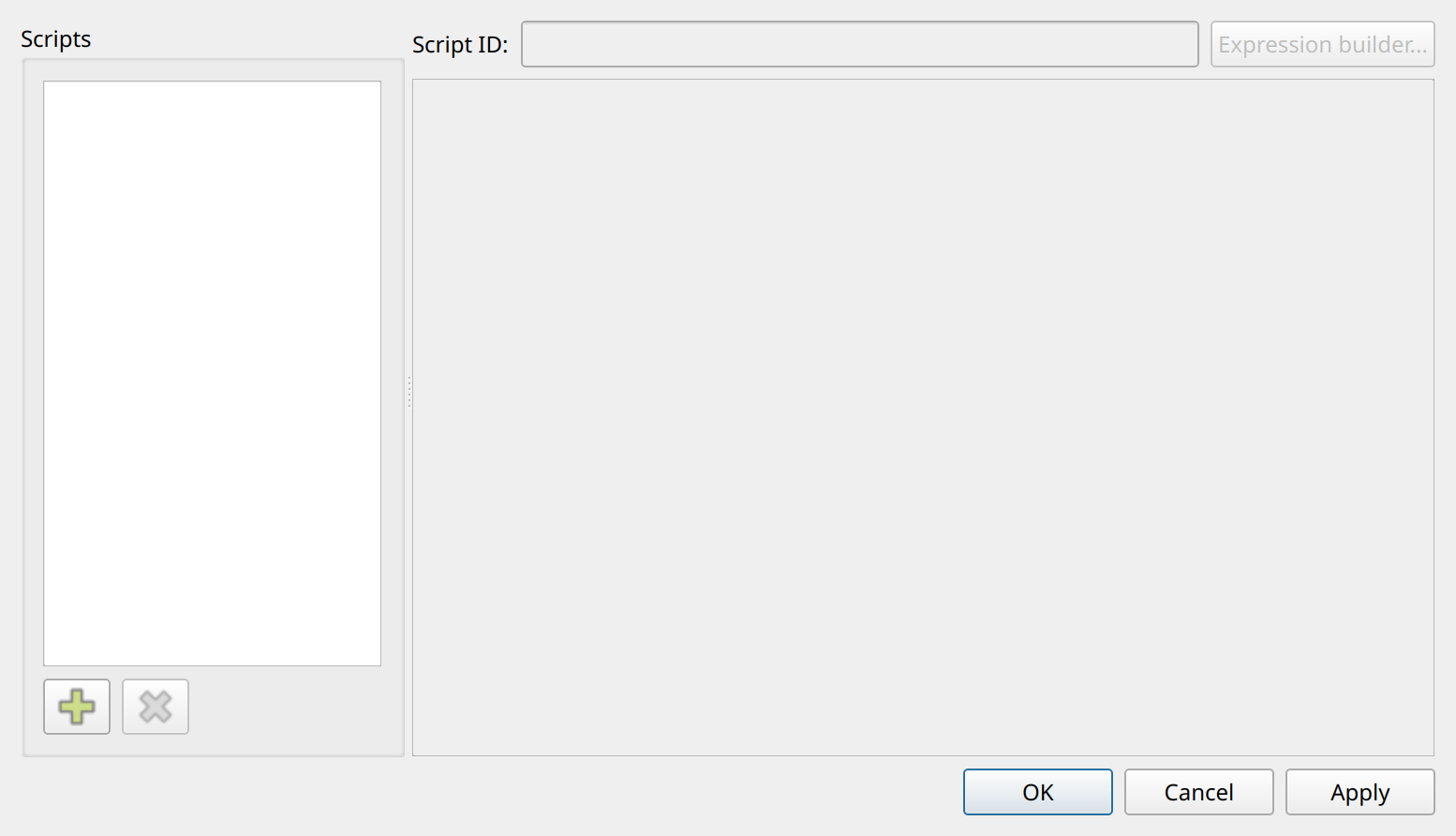
Script ID
The script identifier. You reference the script with this ID anywhere in the report, for example: $S{myscript1}