Data/Script Expressions
Since version 2.0, NCReport can handle data and script expressions using the Qt Script module, a powerful feature of Qt (available since Qt 4.3). Qt Script is based on the ECMAScript scripting language, as defined in the ECMA-262 standard. Fields can even contain script code instead of a simple data source column, parameter, or variable. In this case, the report engine evaluates the specified script code each time the fields are refreshed. Report items can also have a Print only when expression is true (short name: printWhen) property. Print-when expressions are script expressions too, but they must always return a boolean result. To use a script expression in fields, you have to set the field source type to Expression in the Field property dialog.
|
In Qt 6, the Qt Script module is no longer available. Instead, the report script expressions are evaluated by
|
Using references in expressions
Expressions can contain the following references: data source column, parameter, variable, field result, and predefined script. When expressions are evaluated, the references are always replaced with their current values. The syntax of the references is as follows:
Syntax |
Description |
$D{[datasourceID.]column} |
Data source column reference. Returns the current value of the
data source column from the current data row/record. If |
$P{parameterID} |
Parameter reference. Returns the value of the parameter by name/ID. |
$V{variableID} |
Variable reference. Returns the current value of the variable by name/ID. |
$F{fieldID} |
Field reference. Returns the current display value of the specified field. The fieldID is the auto-generated but editable ID of the field, generated when the field is added to a section. |
$S{scriptID} |
Script reference. Inserts the predefined script stored in the report under the specified ID. See Script Editor. |
|
If an expression contains a reference of string/text type, the reference must be enclosed in quotation marks. For example: |
References in templates
A template is a text in which you can embed data references without using script formulas. Templates can be used in fields as a source type, or in rich texts if template mode is on.
Example of using data references in templates:
First name: $D{datasource1.firstname} Last name: $D{datasource1.lastname} Date from: $P{date_from}Reference examples
Example of using a script expression in fields:
"$D{datasource1.productName}"+" first string "+" second string "+"$P{parametername}"Example of using a script expression as the Print only when expression is true property. The expression must return a logical value:
$D{productPrice}<1500Example of using data references in templates:
"Date period: $D{ds.datefrom} - $D{ds.dateto}"
"Dear $D{ds.firstname} $D{ds.lastname},"
Testing Field Expression
Now let’s try out how expressions work with fields, using our previous report example. Open the report in the designer and select the productName field in the detail section. Open the field properties dialog by double-clicking on the field item. Change the field source type to Expression, then modify the field column expression to the following script expression:
if ($D{ProductID}>40) "Product: "+"$D{ProductName}"; else "";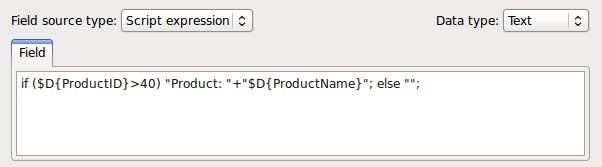
In this case, the report engine first replaces the references in the code and then evaluates the script code before each rendering action. Close the dialog by clicking OK, then save the report. Now run the report to the preview window and look at the result:
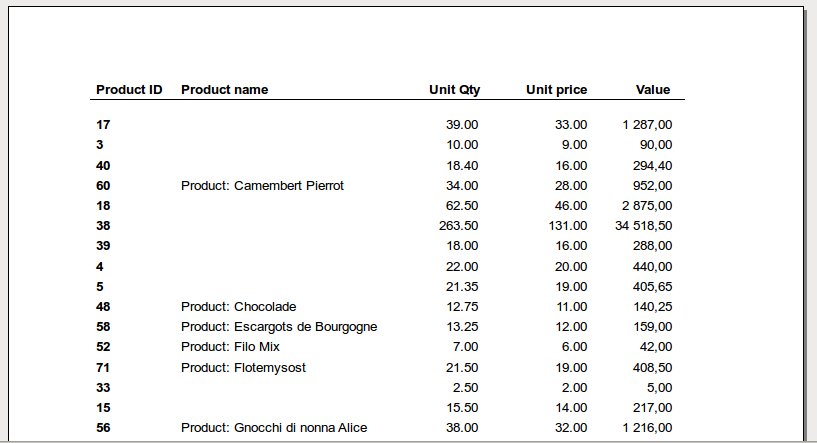
This example works, but it is not the most effective way of using expressions. In most cases, when you use expressions in fields, you don’t need very complex code. If you need a condition to determine whether your field should be visible, we recommend using the Print only when expression is true feature instead. We test this feature in the next section.
Print-When Expressions
A print-when expression is always a logical script expression that returns true or false. It is considered only if it is defined for an item or section. When the print-when expression is set, the item (or section) is printed only when the expression returns true. As usual, the expression can contain any data source, parameter, or variable reference.
Examples:
Hide an item when the value of the DataSource1.intcolumn column is less than 10:
$D{DataSource1.intcolumn}>=10A print-when example with a boolean column:
$D{DataSource1.boolcolumn}The item appears when DataSource1.stringcolumn is not empty:
"$D{DataSource1.stringcolumn}">""Testing a print-when expression
Print-when script expressions are code that returns a boolean result; they are often called logical expressions. To test one, open the field properties dialog by double-clicking the same field item, and type the following code as the print-when logical expression:
$D{ProductID}>40Print only when expression is true condition

Then modify the previous field column expression to the following:
"Product: "+"$D{ProductName}"After you confirm the settings and save the report, run the report again. You should get the same result.
Templates in Fields and Texts
Templates are special expressions in which the data references are simply embedded in a text. A template is not a script, so you cannot use script language elements, only data source, parameter, and variable references. For example:
Customer name: $D{ds1.name} Address: $D{ds1.address}
Interval: $P{datefrom} - $P{dateto}|
Template expressions are faster than script expressions because they require no evaluation, only a simple insertion. |
Script expressions in special locations
Instead of a data reference, parameter reference, or variable, it is even possible to use a script expression in some special locations, such as a group expression or a text item. This feature makes grouping and text manipulation even more flexible.
Script as group expression
If you want to use a direct script as a group expression, you can write a script expression between <% %> markers.
Since this is a single-line property, avoid building overly complex expressions here.
Example:
<% if ($D{ds.age}<12) "KID"; else "MALE"; %>A predefined script (see Script Editor) can also be referenced within the markers:
<% $S{myscript} %>Date functions in group expressions
A group expression can also group data by a part of a date column. The following functions are available; the function name is followed by the column reference between curly braces:
$YEAR{column}-
Groups by the year of the date.
$MONTH{column}-
Groups by the month of the date (1 to 12).
$WEEK{column}-
Groups by the week number of the date.
$DAY{column}-
Groups by the day of the week (1 = Monday to 7 = Sunday).
Example:
$MONTH{orders.OrderDate}Script in HTML Texts
The HTML text item has many flexible scripting features. You can embed data references or expressions
if template mode is turned on. To include a script expression within a text, use
the <% %> markers. Within the markers you can write a script; the result of the script will be inserted into the
text at the script’s location.
Data Source Functions
Field expressions can contain some simple function references. These functions help you apply basic operations on data or get meta information from data sources. There are data source level functions and data column level functions. The function name is appended to the data source ID or the column ID, depending on the function, separated by a dot.
Data source (meta) functions
The syntax of a data source function:
DataSourceId.function()In scripts or templates:
$D{DataSourceId.function()}- rowCount()
-
Returns the number of rows in the data source.
Example:
products.rowCount() or $D{products.rowCount()}- isAvailable()
-
Returns the result of the data source’s
isAvailable()method.
Example:
products.isAvailable() or $D{products.isAvailable()}- isValid()
-
Returns the result of the data source’s
isValid()method.
Example:
products.isValid() or $D{products.isValid()}- isEmpty()
-
Returns true if the data source has no data records.
Example:
products.isEmpty() or $D{products.isEmpty()}- isNotEmpty()
-
Returns true if the data source has at least one data record.
Example:
products.isNotEmpty() or $D{products.isNotEmpty()}- update()
-
Forces an update of the data source by calling its
update()method, then moves to the first record. The function returns an empty value. This can be useful if you want to update a user-defined data source manually. Use this function carefully.
Example:
products.update() or $D{products.update()}Data source column (value) functions
The data source column functions help with some basic text operations.
The syntax of a data source column function:
DataSourceId.column.function()In a Detail section when using the assigned data source:
column.function()In scripts or templates:
$D{DataSourceId.column.function()}In a Detail section when using the assigned data source:
$D{column.function()}- MID(pos,n)
-
Returns a substring that contains n characters of the value, starting at the specified position pos (the first character is at position 0).
Example:
DataSource1.firstname.MID(2,5) or $D{DataSource1.firstname.MID(2,5)}- LEFT(n)
-
Returns a substring that contains the n leftmost characters of the value.
Example:
DataSource1.firstname.LEFT(3) or $D{DataSource1.firstname.LEFT(3)}- RIGHT(n)
-
Returns a substring that contains the n rightmost characters of the value.
Example:
DataSource1.firstname.RIGHT(2) or $D{DataSource1.firstname.RIGHT(2)}- USERFUNC(arguments)
-
Executes the
NCReportDataSource::getUserFunctionValue(value, arguments)method of the data source and returns its result. The text between the parentheses is passed as theargumentsstring. This is intended for custom-implemented data sources.
Example:
DataSource1.lastname.USERFUNC() or $D{DataSource1.lastname.USERFUNC()}