Conditional Formatting
This feature enables dynamic, data-driven text styles in reports, based on the current value of any data source column, parameter, variable, or script expression. Conditional formatting is available for Labels and Fields only. (HTML Text items can be styled dynamically in a different way: by embedding data references or script expressions in the HTML code in template mode.)
The format definition is a block of code with style tags and values or expressions, similar to CSS code. A style tag and its value/expression are separated by a colon, and each line contains one style definition. A value can be a constant, a data source, parameter, or variable reference, or a script expression. Script expressions must be enclosed in curly braces: if the value starts with {, it is evaluated as a script.
Dynamic Style Tag Symbols
Tag symbol |
Description |
Examples |
|
Text foreground color |
|
|
Text background color |
|
|
Font family name |
|
|
Font bold on/off |
|
|
Font italic on/off |
|
|
Font weight integer value. Higher value results in bolder text. |
|
|
Font underline on/off |
|
|
Font size in points. Integer value. |
|
|
Font strikeout on/off |
|
|
Text letter spacing value. A greater value results in wider spacing. |
|
|
Rendering option that the text font applies. Integer value from 0 to 4. Equals the QFont::Capitalization enumeration property. |
|
Editing Style Code in Designer
To define conditional text formatting for a Label or a Field, click the Conditional formatting… button at the bottom of the item property dialog. The conditional format code dialog appears. Type or paste the format code, following the syntax rules, then click OK to save the code.
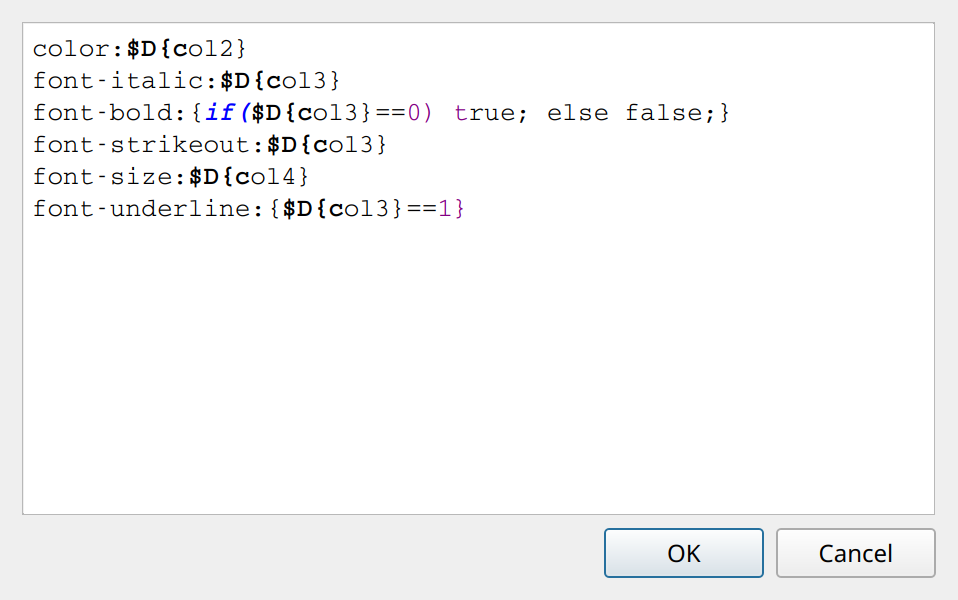
Default Style
If a condition (script or data) returns an empty value, the default style is applied. The default style settings are the ones you set statically in the report, as usual.
Examples
The CondFormatDemo.xml, CondFormatDemo_JS.xml, and CondFormatDemo2.xml demo reports show conditional formatting in practice.
Conditional format code can also modify the value of variables. See Modifying variables.