Internationalization
Since version 2.5, reports can support multiple languages. This is an important aspect of international applications. The goal of this feature is to allow fields and labels to store multiple texts, one for each predefined language.
Adding languages
-
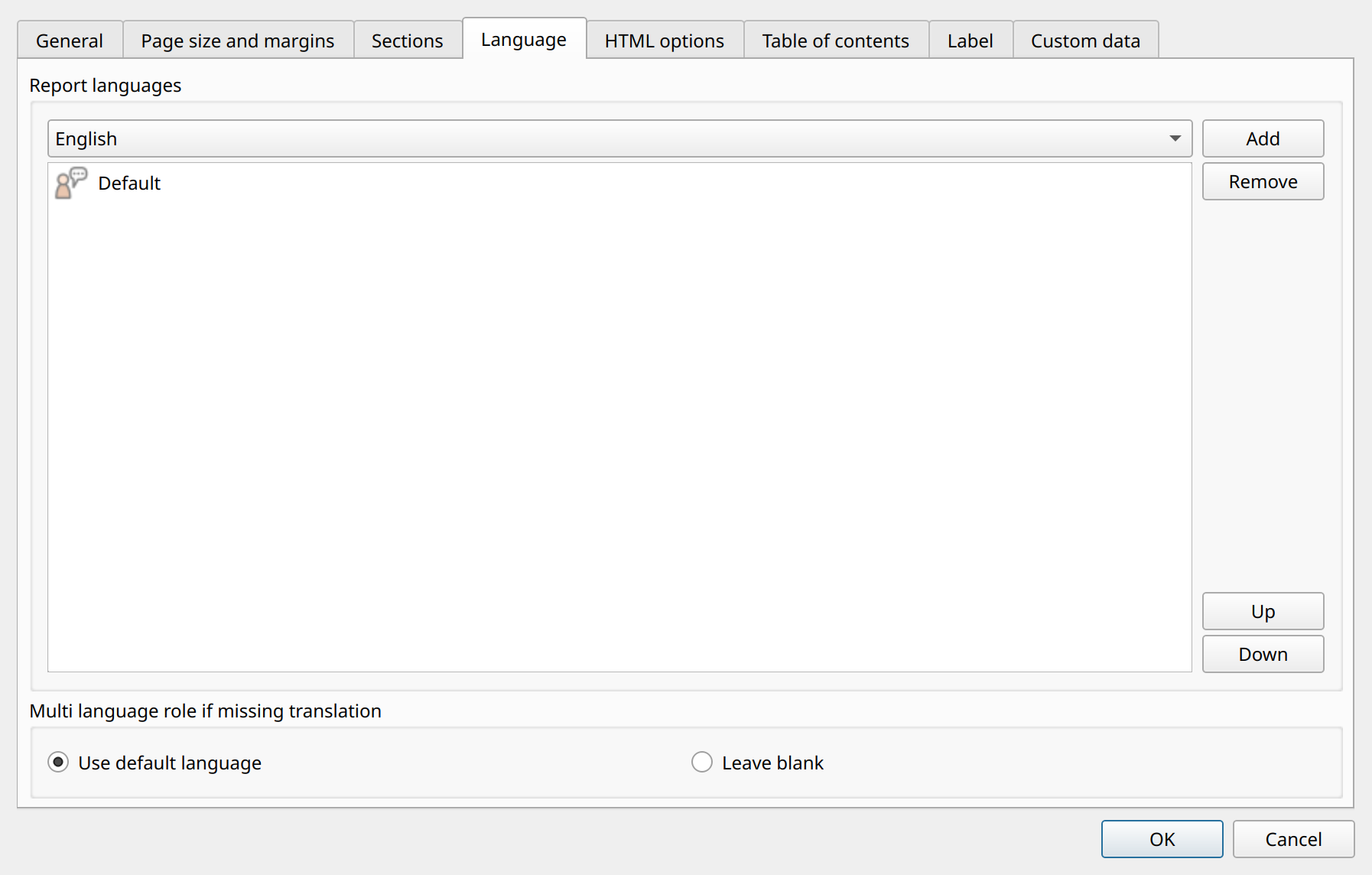
To set the languages, select and choose the Language tab in the dialog.
-
To add more languages, select a language in the combo box and add it to the language list with the Add button.
|
Leave the Default language first in the list. It represents the original language of the report. |
-
Set the Multi language role if missing translation option. It determines what happens if a label or field has no translation for the current language: if you choose Use default language, the default text appears; if you choose Leave blank, the label or field is not printed.
Adding translations of Fields or Labels
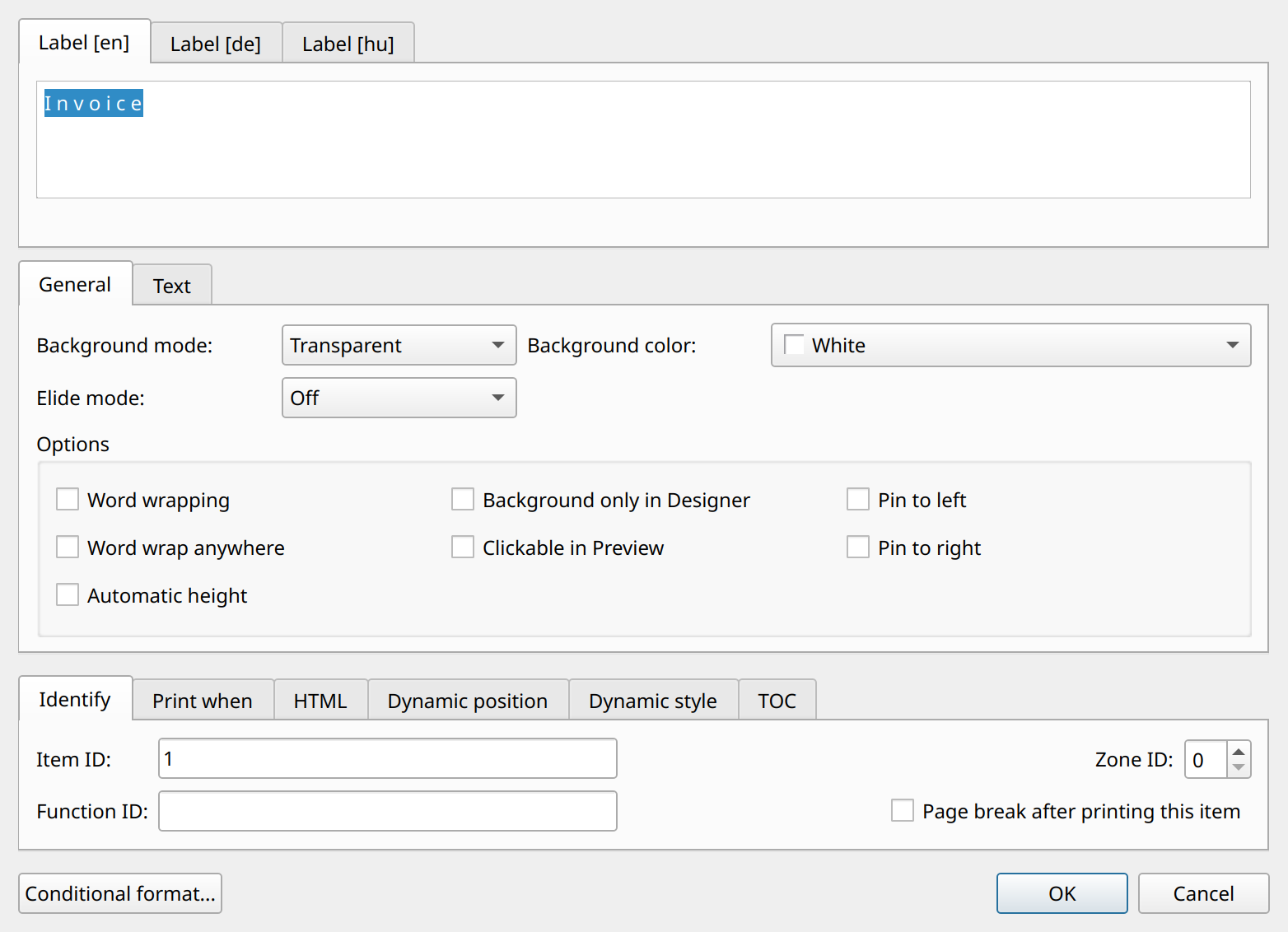
Insert a Field or Label item as usual. The property dialog contains a tab for each language defined previously. Type the translations into the appropriate language tabs. An empty translation tab means a missing translation.
Setting up the current language
The current language of the report can be set both in design mode and at runtime. In the Designer, select or the Languages tool button on the toolbar, and choose the language you want from the submenu.
To set the language from application code, use the setCurrentLanguage( const QString& langcode ) function, where langcode is
the two-letter ISO language code.