Table View Rendering
The Table View item is a report item for rendering QTableView tables with full WYSIWYG print support, or for rendering the content of an item model. The function was originally designed for printing tables that look the same as an existing QTableView widget on the screen. The Table View item follows the formatting of the original QTableView widget, and the cells get their display appearance information from the table’s item model. Some basic table settings, such as the header background, line type, and line color, are currently fixed.
Adding TableView item
To add a Table View item to a section in the Designer, select the Table View tool button or the corresponding item in the Insert menu. After the cursor changes to a crosshair, click in the section where you want to place the item. The Table View item is created and its settings dialog appears.
|
It is strongly recommended to add the Table View to a Detail section, not to a header or footer. Since the table may fill the available space both horizontally and vertically, no other report items should be added to this section. The Table View has its own data assignment, so it is independent of the detail’s data source. The detail’s data source should be a dedicated one with a single record; a one-row static text data source is a good choice. |
In the Table settings dialog, specify the same IDs that you use when passing the table view and the model to the report from code. The report engine identifies the objects by these IDs.
Table View Dialog
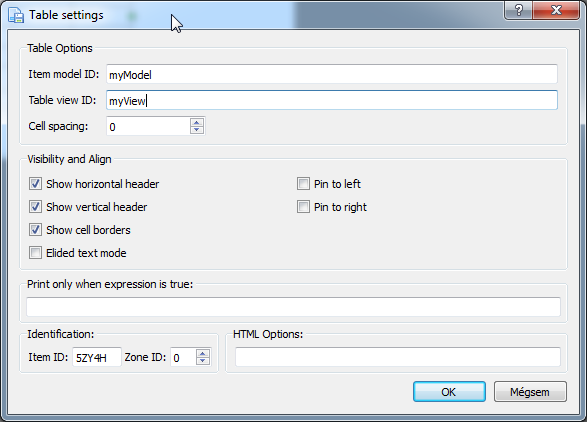
The dialog options are as follows:
-
Table view IDIdentifies the QTableView object you want to render. -
Item model IDIdentifies the item model of the table. -
Cell spacingSpacing value for the cells. Currently it has no effect. -
Cell renderer IDandCell renderer columnAssign a custom cell renderer to a column (see "Custom Cell Content" below). -
Decimal precisionThe number of decimal places for floating-point data cells. If it is set to Auto, the values are printed unformatted. -
Font sizeThe font size of the table, or Auto. -
Force aspect ratioIf enabled, the table is always scaled to the width of the item. -
Show horizontal headerIf enabled, the horizontal table header appears. -
Show vertical headerIf enabled, the vertical table header appears. -
Alternate row backgroundIf enabled, every second row gets a light gray background. -
Auto row heightAutomatic row height calculation. -
Show cell bordersShows or hides the cell borders. -
Elided text modeWhen this option is enabled, multi-line text is not rendered in full; only the first line is shown, followed by an ellipsis. -
Pin to leftThe table is automatically aligned to the left margin. -
Pin to rightThe table is automatically aligned to the right margin. -
Hidden rowsandHidden columnsComma-separated lists of the row and column indexes that should not be printed.
Setting the object references
Use the following API functions to pass the QTableView object and its model to NCReport. You have to set the appropriate IDs to identify the objects, because multiple objects can be assigned to one NCReport object. This is needed only when running the report, not at design time.
NCReport* report = new NCReport( this );
report->addItemView( ui->tableView, "myView");
report->addItemModel(ui->tableView->model(), "myModel");
Example
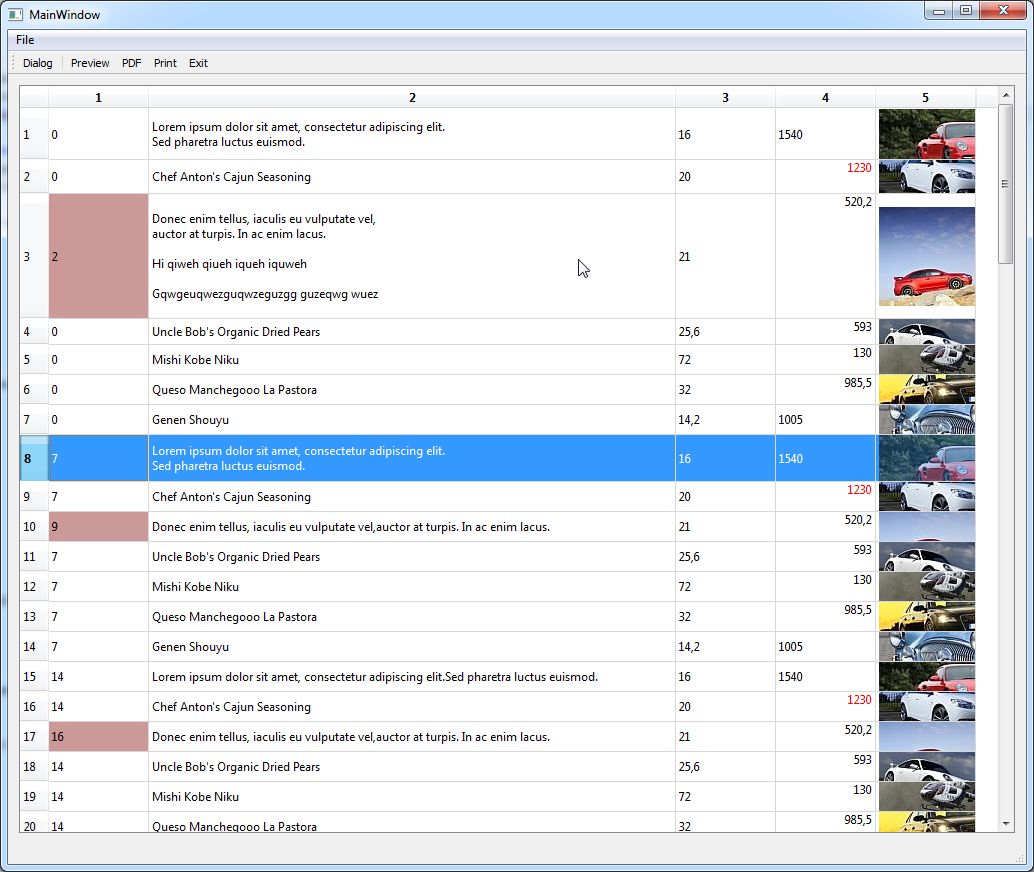
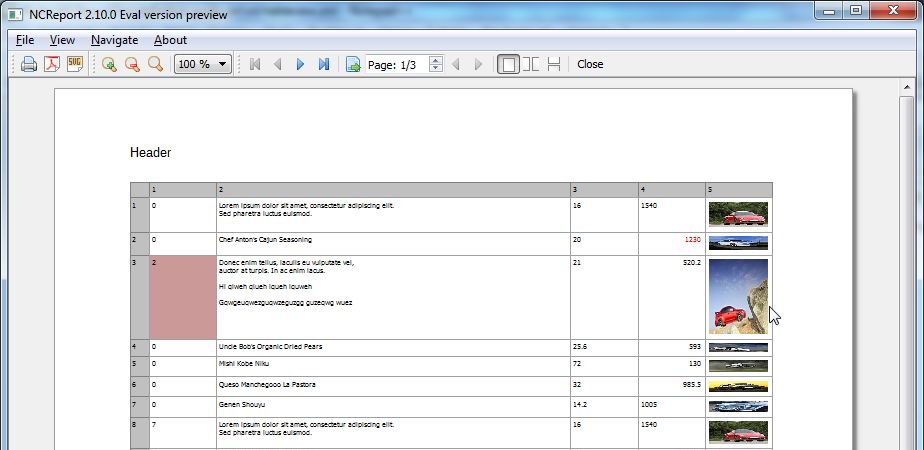
The following example shows a QTableView widget on the screen and the same table in the print preview. The table is filled with test data, including images.
Printing Item Model Based Table without QTableView
It is also possible to render a table without having an existing QTableView widget (or any other item view). In this case, you have to set at least the item model ID that you assign from code; the table view ID can be left empty. Without an item view, the report engine tries to calculate the optimal cell width and height based on the content.
Example code:
QStandardItemModel model(4, 4);
for (int row = 0; row < model.rowCount(); ++row) {
    for (int column = 0; column < model.columnCount(); ++column) {
        QStandardItem *item = new QStandardItem(QString("row %0, column %1").arg(row).arg(column));
        model.setItem(row, column, item);
    }
}
NCReport* report = new NCReport( this );
report->setReportFile("mytablereport.ncr");
report->addItemModel(&model, "myModel");
report->runReportToPdfWriter("outputfile.pdf");
Custom Cell Content
It is even possible to print custom-defined cells (columns) in tables, for example graphical content. To achieve this, implement a subclass of the graph renderer API, whose base class is NCReportGraphRenderer.
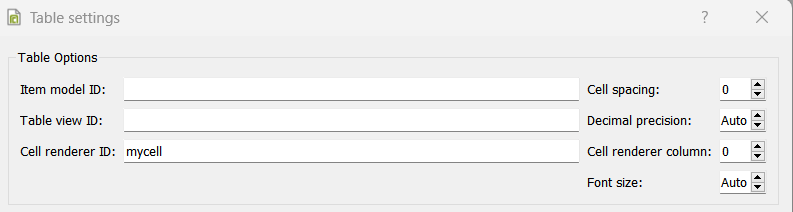
The renderer is assigned to a column of the table by the Cell renderer ID and Cell renderer column settings of the table item
(internally, these are set by the NCReportTableItem::setCellGraphRenderer(const QString id, int column) function).
When a data cell of that column is painted, the renderer’s paintItem() function is called, and the index() function of the renderer returns the model index of the current cell.
Example implementation of a custom cell/column renderer class:
#include "ncreportgraphrenderer.h"

class MyCustomCellRenderer : public NCReportGraphRenderer
{
public:
    MyCustomCellRenderer();
    virtual ~MyCustomCellRenderer() override;

    virtual void paintItem( QPainter* painter, NCReportOutput* output, const QRectF& rect, const QString& itemdata ) override;
};

#include "mycustomcellrenderer.h"
#include <QPainter>

MyCustomCellRenderer::MyCustomCellRenderer() {}

MyCustomCellRenderer::~MyCustomCellRenderer() {}

void MyCustomCellRenderer::paintItem(QPainter *painter, NCReportOutput *output, const QRectF &rect, const QString &itemdata)
{
    Q_UNUSED(output)
    Q_UNUSED(itemdata)

    MyLogoPainter cp;
    cp.setMyProperty(50);
    cp.setState(MyLogoPainter::Basic);

    painter->save();
    cp.paint(painter, rect.toRect());
    painter->restore();
}
To register your renderer with the report, use the addGraphItemRenderer() API function:
MyCustomCellRenderer *renderer = new MyCustomCellRenderer();
renderer->setId("mycell");
...
NCReport* report = new NCReport( this );
report->addGraphItemRenderer(renderer);
In the table settings dialog, set the same renderer ID and the column index: